
A UTM builder adds tracking tags to a link so Google Analytics can tell you where each visit came from. Paste your page URL, fill in utm_source, utm_medium and utm_campaign, and copy the tagged link. Our free tool also keeps your existing query string and #anchor, and it can tag a whole list of URLs at once.
We built it around three mistakes that GA4’s own rules punish. First, “Email” and “email” show up as two sources. Second, a medium like “newsletter” lands in the Unassigned channel. Third, an old tag stays on a reused link. So the tool lowercases values, shows the likely GA4 channel and replaces old UTM tags.
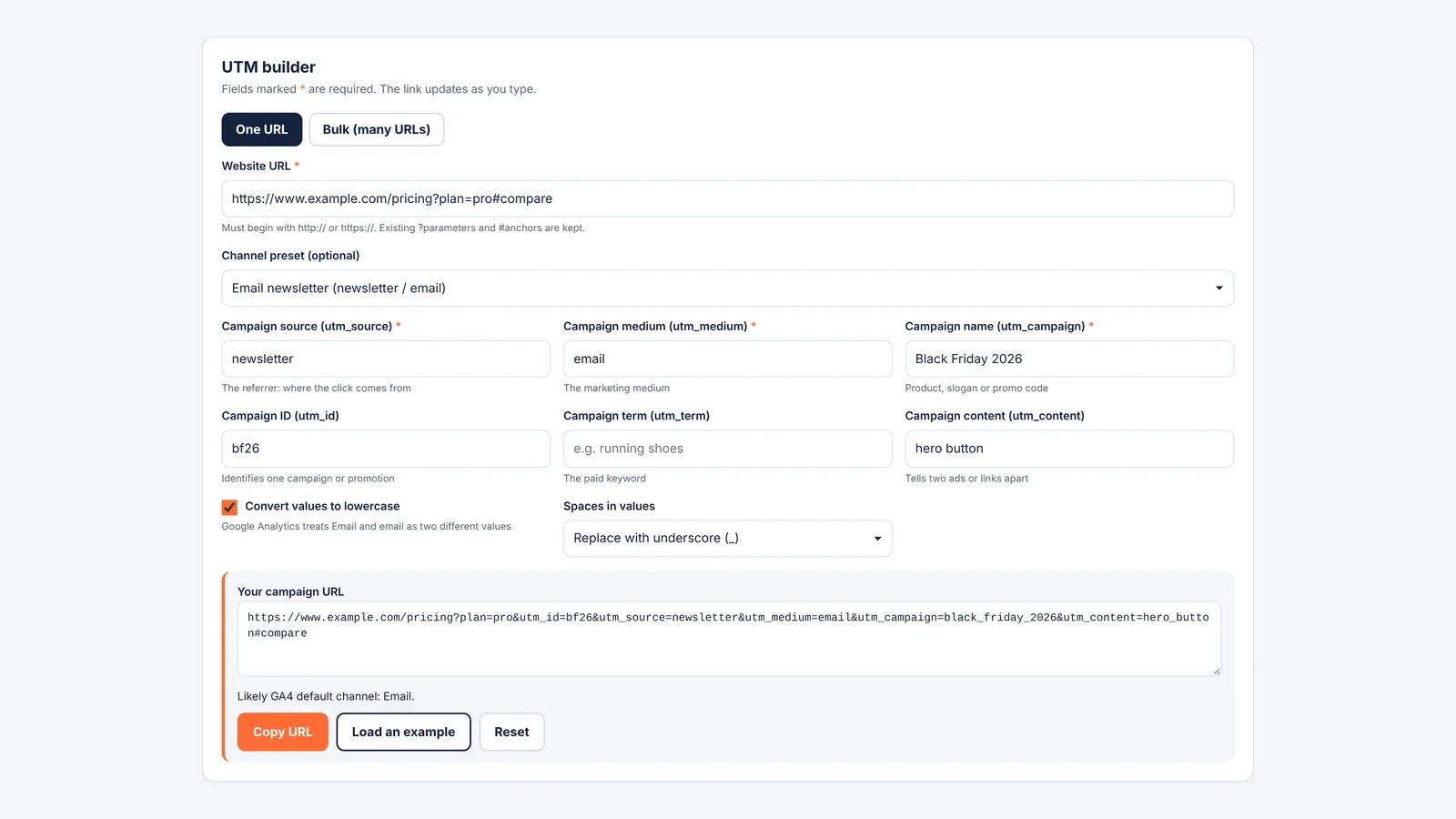
UTM builder
Fields marked * are required. The link updates as you type.
Everything runs in your browser. Nothing you type is sent or saved.
Build a Tagged Link in Four Steps
- Paste the full page address into Website URL. It has to begin with http:// or https://.
- Pick a channel preset, or type your own source and medium.
- Add a campaign name. Then add an ID, term or content value if you need them.
- Press Copy URL and paste the link into your ad, email or post.
Next, try Bulk mode when one campaign covers many pages. Paste one URL per line, and the tool tags each one with the same values. Lines that fail the http or https check are marked as skipped. So you can spot a typo before the links go live.
Learn What Each UTM Parameter Means
Google Analytics reads six standard tags from a URL. The definitions in the widget follow Google’s own help page word for word where we could.
| Parameter | What it records | Example value |
|---|---|---|
| utm_source | The referrer that sent the click | google, newsletter, billboard |
| utm_medium | The marketing medium | cpc, banner, email |
| utm_campaign | A product, slogan or promo code | spring_sale |
| utm_id | The ID of one campaign or promotion | spr26_01 |
| utm_term | The paid keyword | running_shoes |
| utm_content | Which creative or link was clicked | header_button |
Google says you should always set utm_source, utm_medium and utm_campaign. Missing tags show up as “(not set)” in reports. Also, the order of the tags does not matter. GA4 also reads utm_source_platform, utm_creative_format and utm_marketing_tactic. However, Google notes the last two are not reported in GA4 properties yet, so we left them out of the form.
Keep Values Lowercase and Consistent
Google Analytics treats tag values as case sensitive. So “Facebook” and “facebook” become two rows in your source report. That is why Google’s own advice is to use lowercase as a standard practice. The lowercase box in the tool is ticked by default for the same reason.
Spaces need a decision too. The tool swaps them for underscores by default. You can pick hyphens instead, or keep spaces as %20. Whatever you choose, use it for every link in the campaign.
Pick a Medium That Lands in the Right Channel
GA4 sorts traffic into default channels by matching your source and medium against fixed rules. So the medium you type decides which channel a click lands in. We read Google’s channel rules and built the presets around them.
| Preset | Source / medium | Likely GA4 channel |
|---|---|---|
| Email newsletter | newsletter / email | |
| Google Ads, manual tagging | google / cpc | Paid Search |
| Facebook ads | facebook / paid_social | Paid Social |
| LinkedIn post | linkedin / social | Organic Social |
| YouTube description | youtube / video | Organic Video |
| Affiliate partner | partner / affiliate | Affiliates |
| Text message | sms / sms | SMS |
| Display banner | partner-site / display | Display |
For example, a paid medium has to be ppc or retargeting, contain “cp” (like cpc), or begin with “paid”. Then the source decides whether it is Paid Search, Paid Social or Paid Video. In contrast, the source “newsletter” with the medium “newsletter” matches no rule. As a result, those clicks fall into Unassigned. The tool prints its best guess of the channel under every link, so you can catch this early.
See How the Builder Handles Real URLs
First, take a pricing page that already has a parameter and an anchor: https://www.example.com/pricing?plan=pro#compare. Then tag it for a Black Friday email with the campaign “Black Friday 2026” and content “hero button”. The tool returns this link:
https://www.example.com/pricing?plan=pro&utm_id=bf26&utm_source=newsletter&utm_medium=email&utm_campaign=black_friday_2026&utm_content=hero_button#compare
The plan=pro parameter stays in place. The tags go before the #compare anchor, because a URL’s query string has to come before the # part. Also, the values come out lowercase with underscores.
Next, take a link that someone tagged before: ?utm_source=old&color=red. When you build a new link from it, the tool removes the old utm_source and keeps color=red. So you never send a link with two sources. Special characters are encoded too. For example, a campaign called “Summer & Sun/2026” becomes Summer%20%26%20Sun%2F2026 when you keep spaces. Without that encoding, the & would cut the campaign name in half.
Avoid Common Tagging Mistakes Before Launch
- Tag only links that point to your site from somewhere else, such as ads, emails and social posts.
- Keep a shared sheet of approved sources and mediums. Then every teammate tags the same way.
- Use utm_content to compare two buttons or two ads in the same email or campaign.
- Turn long tagged links into a code before you print them. Our free QR code generator turns a tagged link into a scannable code for flyers.
- Check the tagged link in a browser before launch. A broken page wastes the whole send.
Clean tags also make cost reports more useful. For instance, our guides to blended CAC vs paid CAC and CAC payback period both depend on knowing which channel brought each customer. You can find more free tools on the Bizolaunch tools page.
Questions Marketers Ask About UTM Links
Which UTM Parameters Are Required?
Google asks you to always set utm_source, utm_medium and utm_campaign. The other tags are optional. However, any tag you leave out shows as “(not set)” in Google Analytics reports.
Are UTM Parameters Case Sensitive?
Yes. Google Analytics treats “Email” and “email” as different values. So pick lowercase and keep to it across every campaign.
Where Do UTM Values Show Up in GA4?
They fill the source, medium and campaign dimensions in your traffic reports. However, GA4 strips UTM tags from the Page path + query string and Landing page + query string dimensions. So look for the full tagged URL in the Page location dimension instead.
Can I Add UTM Tags to a URL That Already Has Parameters?
Yes. Add the tags with an & after the existing parameters. Our builder does this for you and keeps the #anchor at the end. It also replaces any old UTM tags on the link.
Why Does My Campaign Show as Unassigned in GA4?
Your source and medium probably match none of GA4’s channel rules. For example, newsletter / newsletter lands in Unassigned, while newsletter / email lands in Email. So use the standard mediums from the presets.