
To turn images into a PDF, add your JPG, PNG or WEBP files below, put them in the order you want, pick a page size and press Create PDF. Each image becomes one page, and the file is built inside your browser, so your receipts, ID scans and signed forms are never uploaded to anyone’s server.
Most online converters ask you to send the files to them first. That is a poor trade for a passport scan or a bank statement photo. This free image to PDF converter does the work on your own device with jsPDF, an open-source PDF library, and hands you the finished file straight away.
Page Size, Orientation and Why Phone Photos Stay Upright
- Converts JPG, PNG and WEBP images into one PDF, with one image per page, in the order you set.
- Choose A4, US Letter or Fit to image, plus orientation and margins. Auto orientation turns each page to suit its photo.
- Phone photos keep the rotation you see on screen, because the browser applies the photo’s EXIF orientation before the page is drawn.
- Nothing is uploaded. Images are read and placed into the PDF by your browser.
- If the PDF comes out too heavy for an email or upload form, shrink the photos first or run the result through a PDF size reducer.
Image to PDF converter
Turn JPG, PNG and WEBP images into one PDF, one image per page.
Your files stay on your device. Nothing is uploaded.
or drag and drop JPG, PNG or WEBP files here
Pages
–
PDF size
–
Images are read and placed into the PDF by your browser. Photos are saved at high JPEG quality, and phone photos keep the rotation your browser shows.
How to Convert Images to PDF
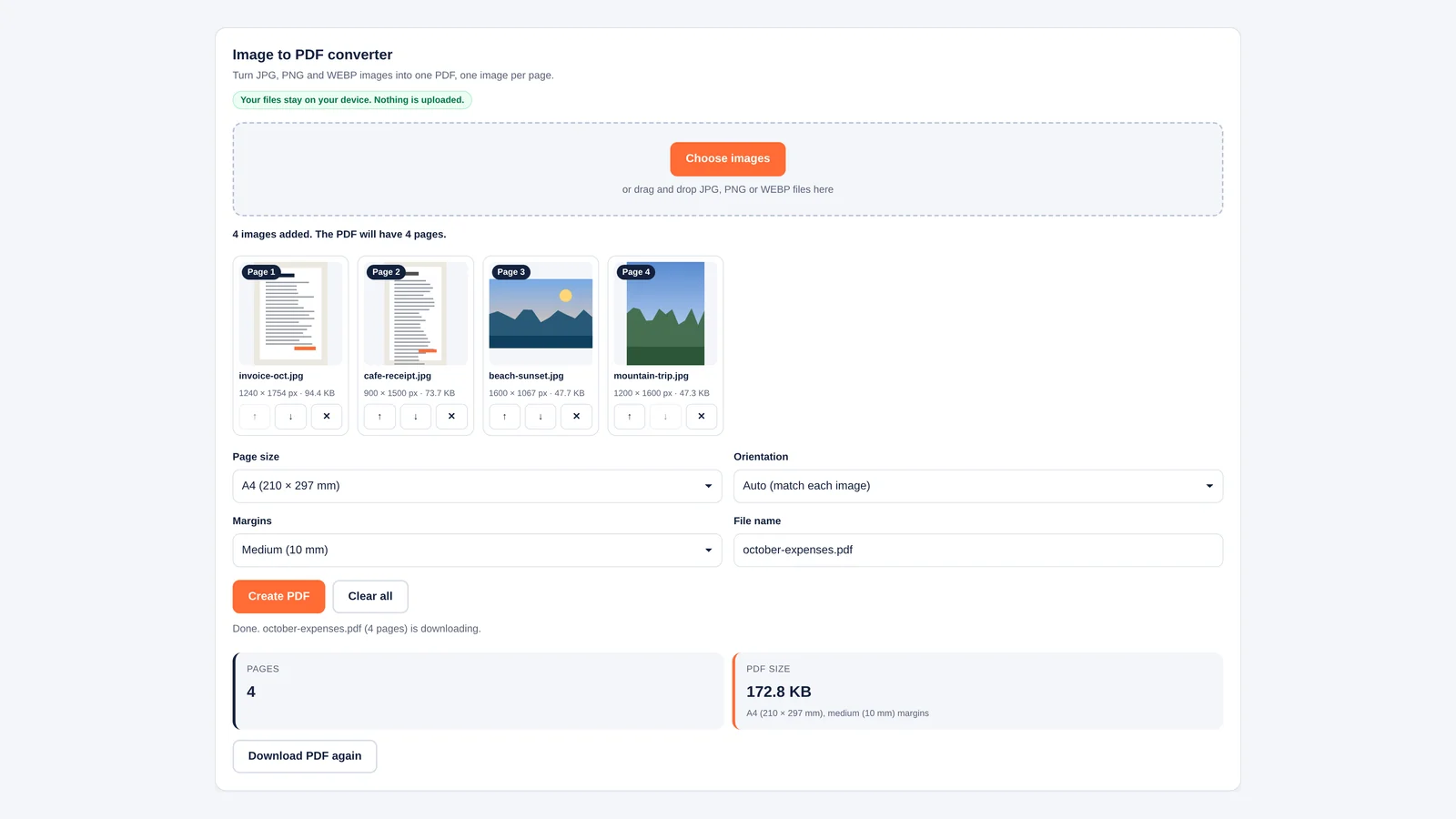
- Add your images: press Choose images or drag files onto the dashed box. You can add more later; new images go to the end.
- Set the page order: drag a thumbnail onto another to move it, or use the up and down arrows under each picture. The arrows work with the keyboard too. The badge on each thumbnail shows its page number.
- Remove what you don’t need: the cross under a thumbnail drops that page. Clear all starts again.
- Pick the page size and margins: A4 suits India, the UK and most of the world. US Letter suits American offices. Fit to image makes every page exactly as big as its picture.
- Name the file and create it: type a name, press Create PDF and the download starts. A Download PDF again button stays on screen in case you lose the file.
What Each Setting Does
| Setting | Options | When to use it |
|---|---|---|
| Page size | A4 (210 × 297 mm), US Letter (8.5 × 11 in), Fit to image | Use A4 or Letter for anything that may be printed or submitted to an office. Use Fit to image for screenshots, posters and on-screen portfolios. |
| Orientation | Auto, Portrait, Landscape | Auto turns each page sideways when its picture is wider than it is tall. Force Portrait when a form needs every page upright. |
| Margins | None, 5 mm, 10 mm, 20 mm | 10 mm is a safe default for printing. Use None for edge-to-edge screen viewing. |
| File name | Any text | Characters that operating systems reject, such as slashes and colons, are swapped for hyphens and .pdf is added for you. |
Orientation is switched off when you choose Fit to image, because the page simply takes the picture’s own shape.
How the Converter Places Each Image
Every image is scaled to fill the printable area (the page minus the margins on all four sides) without cropping or stretching, then centred. The scale factor is the smaller of two ratios:
- Scale = min(printable width ÷ image width, printable height ÷ image height)
- Printed size = image width × scale by image height × scale
- Fit to image page = image pixels × 25.4 ÷ 96 in millimetres, plus the margins
Each picture is redrawn on a canvas and saved into the PDF as a high-quality JPEG at 92% quality. Transparent parts of a PNG turn white, which is what you would see on paper anyway. Very large images are capped at 4,096 pixels on the long side, which is still more than 300 dots per inch across an A4 page, so print quality is not affected.
Worked Example: A Phone Photo on A4
Many phone cameras take 12-megapixel photos of 4,032 × 3,024 pixels, which is wider than it is tall. On an A4 page with the default 10 mm margins, that picture lands like this.
| Orientation | Printable area | Scale (mm per pixel) | Printed photo size |
|---|---|---|---|
| Portrait | 190 × 277 mm | min(190 ÷ 4,032, 277 ÷ 3,024) = 0.0471 | 190 × 142.5 mm |
| Landscape (what Auto picks) | 277 × 190 mm | min(277 ÷ 4,032, 190 ÷ 3,024) = 0.0628 | 253.3 × 190 mm |
On a portrait page the photo uses only about half the height and leaves a white band top and bottom. Auto orientation turns the page sideways, and the same photo prints 33% larger. That is why Auto is the default.
Fit to image works differently. A 1,080 × 1,920 phone screenshot becomes a 285.75 × 508 mm page (1,080 × 25.4 ÷ 96 by 1,920 × 25.4 ÷ 96), plus margins. That page is far bigger than A4, but on screen a PDF viewer zooms it to fit, and there is no white space around the screenshot.
Why Phone Photos Sometimes Turn Sideways
A phone usually saves the photo exactly as the sensor captured it and adds an EXIF orientation tag that says “rotate this 90 degrees when you show it”. Some converters ignore that tag, so a portrait photo of a document ends up lying on its side in the PDF. Current versions of Chrome, Edge, Firefox and Safari apply the tag when they load an image, and this tool draws the image as the browser shows it. We tested it with a photo stored sideways with a rotate-90 tag: the thumbnail, the page orientation and the image inside the PDF all came out upright.
If a thumbnail looks wrong in the tool, it will look wrong in the PDF too. Rotate the photo in your phone’s gallery app, save it, and add it again.
Tips for Clean, Small PDFs
- Crop before you convert: a photo of a receipt with a kitchen table around it prints the table too. Crop in your gallery app first.
- Shoot documents in good light: a flat, evenly lit page converts into a smaller and clearer PDF than a shadowy one, because JPEG compresses smooth areas well.
- Watch upload limits: government portals and job sites often cap PDFs at 1 or 2 MB. Ten full-resolution phone photos will go over that. Shrink them first with our bulk image resizer (1,600 pixels on the long side is plenty for A4), or compress the finished file with the PDF size reducer.
- Name files so they sort: a name such as 2026-10-expense-receipts.pdf is easier to find later than images.pdf.
- Keep one topic per PDF: accountants and HR teams prefer one PDF per claim or per document type over a single file of everything.
Freelancers often use this to bundle receipts behind an expense claim or to attach proof of work to a bill. If you also need the bill itself, our free invoice generator makes one in the same private, in-browser way. More calculators and converters are on the Bizolaunch tools page.
What This Tool Does Not Do
It does not read text in your images, so the PDF is not searchable. That needs optical character recognition (OCR), which is a separate step in apps such as Adobe Acrobat or Google Drive. It also does not open HEIC photos, the default format on many iPhones. Change the camera format to Most Compatible in the iPhone’s settings, or share the photo as a JPEG, and it will work here.
Merging JPGs, Image Quality and A4 or Letter
Is This Image to PDF Converter Free and Safe?
Yes. It is free with no sign-up, watermark or page limit. Your images are processed by your own browser and are never sent to Bizolaunch or anyone else. The only thing downloaded from the internet is the jsPDF library itself.
How Do I Combine Multiple JPGs Into One PDF?
Select all the JPG files at once in the file picker, or drag them in together. Arrange them with the arrows or by dragging, then press Create PDF. You get one PDF with one image per page.
Will the PDF Lose Image Quality?
Very little. Images are saved at 92% JPEG quality, which is hard to tell apart from the original at normal viewing size. Only images longer than 4,096 pixels are scaled down, and that is still sharp on a printed A4 or Letter page.
Can I Convert Images to PDF on My Phone?
Yes. The tool works in mobile Chrome and Safari. Tap Choose images to pick photos from your gallery, reorder them with the arrows and tap Create PDF. The file lands in your Downloads or Files app.
Should I Choose A4 or Letter?
Use A4 in India, the UK, Europe and most other countries, and US Letter in the United States and Canada. If the PDF will only be read on screen, Fit to image avoids white borders altogether.