

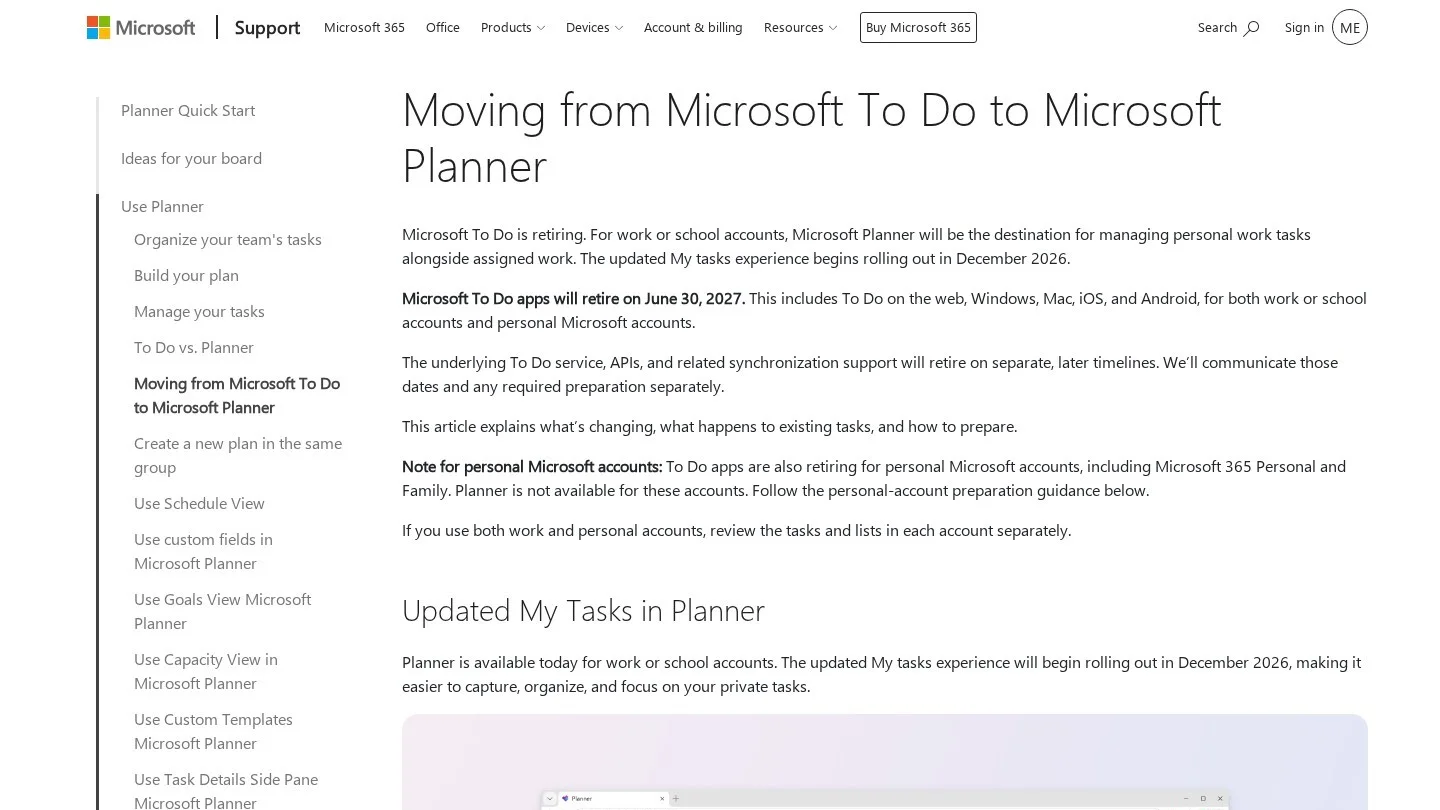
Microsoft will retire its To Do apps on June 30 next year, for both work accounts and personal accounts, on the web, Windows, Mac, iPhone and Android. The company spelled out the plan on a support page it updated on Nov. 18. Business users are told to move to Planner, but their existing To Do tasks and lists will not be carried over.
That is the part many teams will miss. Old tasks stay visible inside Planner only until the apps retire, and after June 30 they can no longer be viewed or managed there. Personal users get no Planner at all and are told to pick another task app.
For a small business, seven months is enough time to move a task system, but only if someone owns the job. In fact, the gaps between To Do and Planner, from reminders to shared lists to desktop apps, mean the switch is more than a click.
What Microsoft Announced
Microsoft’s support page on moving from To Do to Planner sets the retirement for June 30 next year. It covers every To Do app, while the service behind it, its APIs and sync support will retire on separate dates that Microsoft has not yet set.
In the meantime, an updated My tasks view in Planner begins rolling out in December. It brings a list-first view, starring and an Assigned to me view, and it sits next to Grid and Board views, with a List view still to come. New private tasks go into a private plan backed by Planner. For work users, that puts personal to-dos next to assigned team work in a single app, so nobody has to check two places to see what is due.
Work Accounts and Personal Accounts Split Here
Work and school accounts get a path to Planner, while personal accounts, including Microsoft 365 Personal and Family, get none. The table sets out how the change lands for each group.
| Question | Work or School Account | Personal Account |
|---|---|---|
| Do the To Do apps retire on June 30? | Yes | Yes |
| Is Planner offered as the new home? | Yes, available now | No |
| Do old tasks move over? | No, visible in Planner until June 30 only | No |
| Is there an export tool? | Promised before retirement | Promised before retirement |
| Does classic Outlook Tasks keep working? | Yes | Not stated |
Microsoft also says the export will not move tasks into Planner, and details on what it covers are still to come. However, retiring the apps does not by itself mark existing data for deletion, so firms with records rules should talk to their admin before anyone cleans house.
Read also: Google Just Published How Site Owners Can Flag Ranking Changes. The Feedback Won’t Move a Single URL
Six Things Planner Does Not Do the Same Way
Planner is not a one-for-one swap for To Do, and Microsoft lists the gaps itself. These are the ones most likely to trip up a small team:
- Reminders work differently, because Planner relies on due-date alerts instead of set reminder times.
- Shared lists lose their members, assignments and permissions in the move.
- Outlook categories do not sync with Planner labels.
- List groups have no direct match in Planner.
- Printing a list and emailing a list are not planned.
- Tasks in the new private plan cannot hold file attachments.
Desktop users face one more gap. Microsoft has no plans for native Planner apps on Windows or Mac to replace the To Do desktop apps, and Planner runs on the web and inside Teams, with no matching offline desktop mode. So a field worker who checks a list on a laptop with no signal will need a new habit or a new tool.
The Admin Side of the Move
IT admins get no new settings for the change, but they do have homework. If Planner is turned off in a tenant, admins must turn it on for the people who will lose To Do. They should also review any tools that connect through To Do APIs or sync, since those retire on their own schedule. Agencies and contractors on government clouds are told to watch for notices written for their own setup, because their dates and steps may differ.
Some advanced Planner features need extra licenses, and Microsoft tells users to check with their admin. Also, Microsoft says the To Do shortcuts across Microsoft 365 will be updated, with details to follow, while classic Outlook’s built-in Tasks feature is separate and will keep syncing with Exchange.
A Seven-Month Plan for Small Teams
Small teams should treat this like any other system move and set a clear finish date well before June 30. A simple plan looks like this:
- In December, list who uses To Do, which shared lists matter, and which tools connect to it.
- Decide whether Planner fits your work or whether a different tool does. Our roundups of Gantt chart tools for project management and free time tracking apps cover options for teams that plan by deadline or by hours.
- Rebuild shared lists by hand in the new tool, since members and assignments do not carry over, and reset reminders as due dates.
- Use Microsoft’s export tool as soon as it ships and keep a copy, even if you plan to retype tasks.
- Set your own cutoff in the spring, so nobody is still working out of To Do in the last week of June.
The same steps apply to any data move, and our CRM data migration checklist walks through testing and sign-off in more detail. If you are adding staff while you switch tools, our remote employee onboarding checklist helps new hires start on the new system from day one. Solo founders can find more on lean setups in our guide on how to start a business with no employees.