

Guest Wi-Fi security for a small office means letting visitors get online without giving them any path to your staff devices, files or card machine. It comes down to five settings: put guests on their own SSID and network, turn on client isolation, block access to your office LAN, use WPA3 or Enhanced Open, and cap guest bandwidth. After that, a captive portal and a regular password change finish the job. Each step comes with the exact setting name in Ubiquiti UniFi, TP-Link Omada and Cisco Meraki, plus a quick test you can run from a phone.
Most owners want the same two things. Visitors should be online in seconds, and the file server and card machine should stay out of reach. The checklist that follows works on any of the three systems.

Give Guests Their Own SSID on a Separate Network
Give guests their own wireless network name, or SSID, and tie it to its own network segment, usually a VLAN. That way, staff laptops, printers and storage stay on the main network, and guests only ever see the internet.
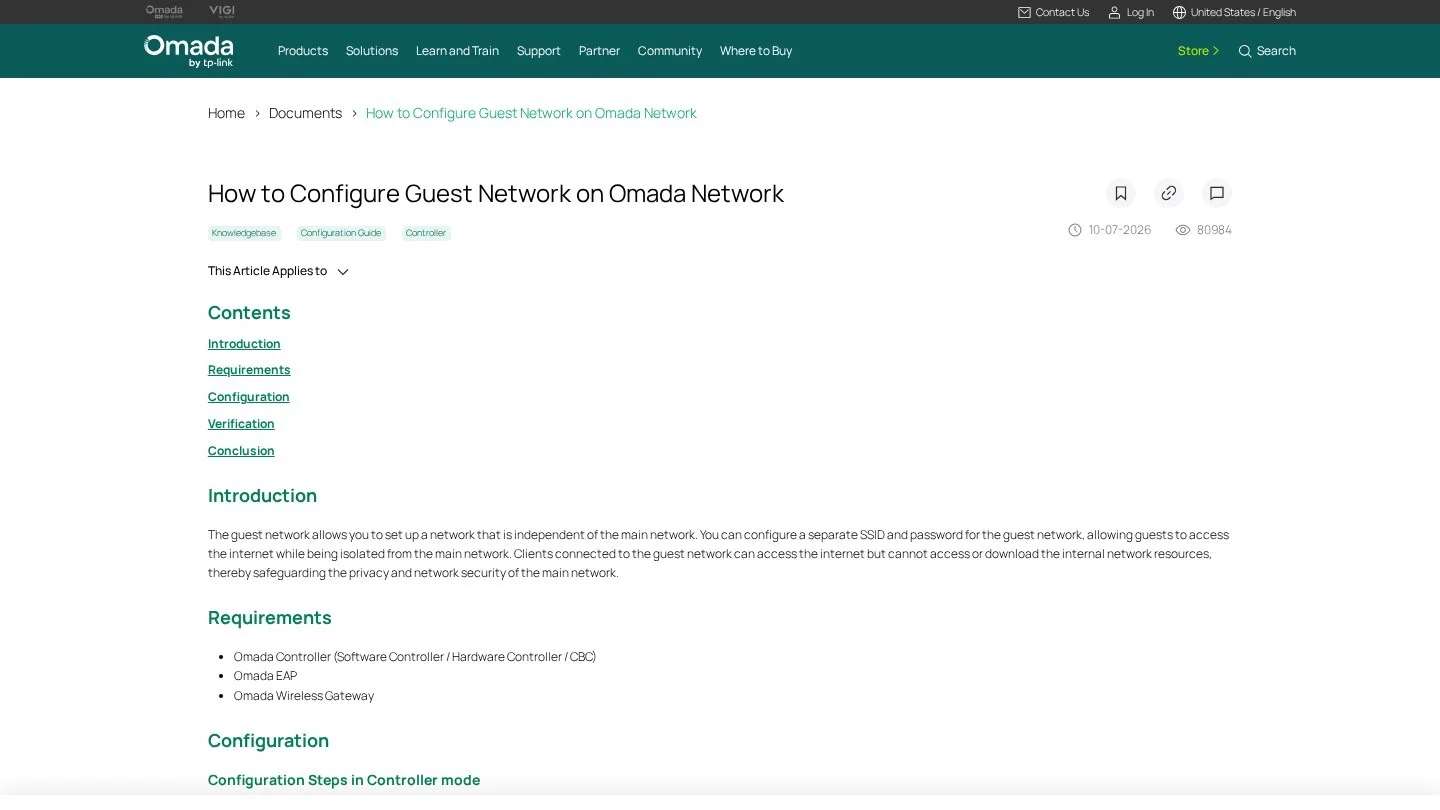
However, each vendor names this step a little differently. For example, UniFi uses a setting called Network Isolation under Settings, then Networks, and it walls the guest network off from every other network and VLAN. In TP-Link Omada, by contrast, you tick a box called Guest Network when you create or edit the SSID.
For most offices, one SSID for staff and one for guests is enough. If you have smart TVs, cameras or other gadgets, though, add a third, because those devices are safer on their own segment too. The small business cybersecurity checklist covers the rest of the office network.
Turn On Client Isolation on the Guest Network
Turn on client isolation so that devices on the guest network cannot reach each other. A separate network keeps guests away from your devices, but guests can still see one another until this setting is on. In a shared waiting room, that matters, since one infected laptop should not be able to probe a visitor’s phone.
- UniFi: turn on Client Device Isolation under Settings, then WiFi. It stops clients on the same access point from talking to each other, and Device Isolation (ACL) does the same job at the switch level.
- Omada: the Guest Network box handles it. With it on, a PC and a phone on the guest SSID cannot ping each other, yet both can still reach the internet.
- Meraki: keep the guest SSID in NAT mode with Meraki DHCP. In that mode, clients get addresses in an isolated 10.0.0.0/8 network and cannot talk to each other.
Block Guest Traffic From Your Office LAN
Block guest traffic from your office LAN so that no guest device can cross into your main network. Isolation between guests is only half the work, and some systems need an extra firewall rule for the other half.
On Meraki, open Firewall and traffic shaping under Configure, then pick the guest SSID. Next, set the Layer 3 rule called “Wireless clients accessing LAN” to Deny. On UniFi, Network Isolation already does this job. Similarly, on Omada, guest clients cannot reach or download internal network files once Guest Network is on.
Shared printers are the usual sticking point. Visitors ask to print, and then someone opens a hole in the guest network. Instead, ask visitors to email the file to the front desk, so the printer stays on the staff network.
Read also: How to Secure a Shared Office Printer: Settings and a 13-Step Checklist
Choose WPA3 or Enhanced Open for Guest Encryption
Choose WPA3 with a password if only invited visitors should join, or Enhanced Open if you want no password at all. The Wi-Fi Alliance launched WPA3 on June 25, 2018. WPA3-Personal uses a method called Simultaneous Authentication of Equals, or SAE, which gives better protection against people trying to guess the password, even when the password is weak.
Enhanced Open, on the other hand, is meant for open networks such as cafes and guest portals. The Wi-Fi Alliance announced it on June 5, 2018, and it is based on Opportunistic Wireless Encryption. As a result, each user gets their own encryption, and nobody types a password.

In a small office, WPA3 with a password works when you want only invited visitors on the network. For a busy waiting room, however, Enhanced Open removes the password step. Either way, avoid a plain open network. Meraki’s basic guest example uses one, labeled “Open (no encryption),” and while that is fast to set up, traffic over the air has no encryption. Before you switch, make sure guests’ devices support your choice, and if you are buying new access points, read about Wi-Fi 7.
Add a Captive Portal and Change the Password on a Schedule
Add a captive portal for a sign-in screen, and change the guest password once a month. A captive portal is the screen a guest sees before getting online. UniFi calls its version Hotspot Portal and marks it as optional, while Meraki offers a click-through splash page that can show your logo or a welcome message. A portal is also a good place for a short note on fair use.
If you use a password, change it on a fixed schedule: once a month, and also whenever a contractor or staff member leaves. Then print the new password as a QR code card for the front desk. The free QR code generator makes that card in a minute.
Never reuse the staff Wi-Fi password for guests. In the same way, treat any email that asks staff to “confirm the Wi-Fi password” as a scam. These phishing email examples show how such messages look.
Set a Bandwidth Limit on Guest Wi-Fi
Set a speed limit on the guest SSID, because one guest streaming video can slow the whole office. UniFi advises guest speed limits to share bandwidth fairly. It also suggests blocking heavy apps through Traffic Management.
Meraki, for its part, puts limits under Traffic shaping rules. Its example uses 500 Kbps per client and 2 Mbps for the whole guest SSID. That is a tight cap, so treat it as an example only. For a small office, size the guest cap as a slice of your plan instead. For instance, a 300 Mbps line might give guests 30 Mbps in total, or 10%, with 5 Mbps per device.
Set Up Guest Wi-Fi Security for a Small Office in UniFi, Omada and Meraki
Set up guest Wi-Fi security for a small office by working through eight steps, from a separate SSID to a monthly password change. The table matches each step to the setting name on each system, and a dash means that system has no named setting for the step.
| Checklist step | UniFi | TP-Link Omada | Cisco Meraki |
|---|---|---|---|
| 1. Separate guest SSID | Settings, WiFi | Site, Network Config, WLAN, Create New Wireless Network | Wireless, Configure, SSIDs |
| 2. Separate network or segment | Network Isolation (Settings, Networks) | Guest Network checkbox | NAT mode: Use Meraki DHCP |
| 3. Client isolation | Client Device Isolation (Settings, WiFi) | Guest Network checkbox | Built into NAT mode |
| 4. Block office LAN | Network Isolation | Guest Network checkbox | Layer 3 rule “Wireless clients accessing LAN”: Deny |
| 5. Encryption | – | Security mode, e.g. WPA-Personal | Association requirements |
| 6. Captive portal | Hotspot Portal (optional) | – | Splash page |
| 7. Bandwidth cap | Speed limits, Traffic Management | – | Traffic shaping rules |
| 8. Password change | Set a monthly calendar reminder (any system) | ||
On Omada, the single Guest Network box covers three steps at once. UniFi and Meraki, by contrast, split the same work across several settings. So on UniFi or Meraki, go down the list one row at a time.
Read also: Home Office Setup: Ergonomics, Budgets and Tax Rules
Test the Guest Network From a Visitor’s Phone
Test the guest network by joining it on a phone and running three checks, because the settings screen alone can hide a mistake. TP-Link checks Omada guest networks in the same way.
- Open a website to confirm the internet works.
- Try to open your printer’s or router’s admin page by its office IP address. It should fail.
- Join a second device to the guest SSID and try to ping the first one. That should fail too.
Repeat the test after every firmware update. Also, if your staff keep Wi-Fi passwords in a password manager and it is ever breached, follow the steps for a password manager breach.
Common Questions About Small Office Guest Wi-Fi
Is Guest Wi-Fi Safe for My Office Network?
Yes, guest Wi-Fi is safe for your office network once guests sit on a separate network with client isolation on and LAN access blocked. Without those settings, though, a guest network can be little more than a second name for your main network.
Should Guest Wi-Fi Have a Password?
Guest Wi-Fi should have a WPA3 password if you want only invited visitors. If you want no password, pick Enhanced Open, which still encrypts each user’s traffic. A plain open network, by contrast, has no encryption at all.
What Does Client Isolation Do on Guest Wi-Fi?
Client isolation stops devices on the guest network from talking to each other. In UniFi, for example, Client Device Isolation blocks traffic between clients on the same access point.
Do I Need a VLAN for Guest Wi-Fi?
You need a separate segment for guest Wi-Fi, and on most systems that is a VLAN. On UniFi, it is a separate network with Network Isolation on. On Omada and Meraki, however, the guest settings handle the split for you.
How Often Should I Change the Guest Wi-Fi Password?
Change the guest Wi-Fi password once a month, plus any time a staff member or contractor leaves. A printed QR code card at the front desk then makes each change painless for visitors.