

A shared office printer is a small networked computer with its own web admin panel, so it needs the same care as any laptop on your network. To secure a shared office printer, change the factory admin password on day one, update the firmware and turn off the network services nobody uses. Then hold print jobs until their owner walks up, put the printer on its own network segment and wipe the hard drive before the machine leaves the building.
HP, Canon, Brother and Xerox each set different defaults, so the steps name the settings for each brand. For example, some Canon models still ship with the same factory PIN on every unit, and one Xerox line ships as an open system. A 13-step checklist at the end pulls it all together.

Replace the Factory Admin Password First
The first step to secure a shared office printer is to log in to its web panel and set a new admin password before anyone prints. Factory logins appear in manuals that anyone can read online, so a default login works like no login at all.
Each maker handles this in its own way. The defaults for one model line from each brand look like this:
| Maker and model line | Factory admin login | Maker’s advice |
|---|---|---|
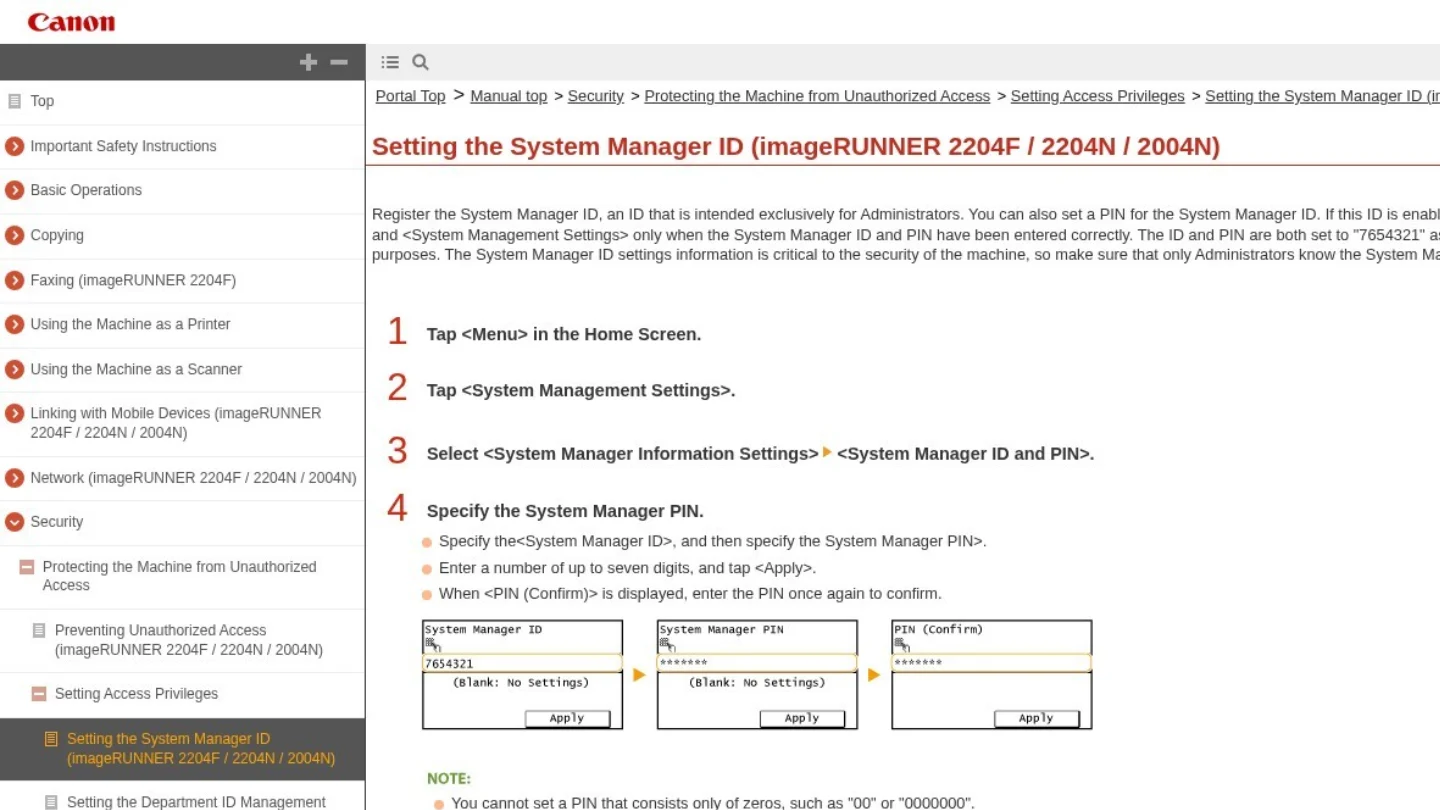
| Canon imageRUNNER 2204F, 2204N, 2004N | System Manager ID and PIN are both 7654321 | Change them for security purposes |
| Xerox VersaLink C8000 and C9000 | User name Admin, password is the serial number or 1111, by build date | Change the system administrator password |
| Brother HL-L8430CDW and HL-L8570CDW | Default password on a label marked “Pwd” on the back | Change it right away in Web Based Management |
| HP printers on a network | Set an Embedded Web Server password | Also set a PJL password |
On that Canon line, the default is the same on every machine. As a result, anyone who knows “7654321” can open the menu on an unchanged unit. To change it, go to System Management Settings, then System Manager Information Settings.
Xerox goes further on the VersaLink C8000 and C9000. The printer ships as an open system, so every user can reach the admin features. On top of that, the admin user name is Admin and cannot be changed, which leaves the password as the only lock.

Brother, by contrast, prints the default password on the machine itself for its HL-L8430CDW line, on a label marked “Pwd” on the back. Brother still advises changing it at once, because anyone who walks past a shared printer can read that label.

Once it is changed, store the new password in your team’s password manager. If that vault ever leaks, follow our steps for a password manager breach and rotate the printer login too.
Install Firmware Only From the Maker’s Website
Install printer firmware only from the maker’s official website, and check for updates on a fixed day, such as the first Monday of each month. Also turn on update alerts or scheduled checks where the printer offers them.
Next, lock down who can push firmware. Disable remote firmware upgrade commands, one of HP’s minimum security settings, so nobody can load new code onto the printer over the network.
Read also: Guest Wi-Fi Security for a Small Office: Settings and Setup Checklist
Close Port 9100, Telnet, FTP and Default SNMP
Close port 9100, Telnet, FTP and default SNMP, along with every other service your office does not use. HP wrote its minimum settings for printers that sit on the open internet, where anyone online can reach the web panel, Telnet, FTP, SNMP and the port 9100 print service. Inside an office, the same services stay open to every device on the network until you close them.
In all, HP’s minimum settings come down to six moves:
- Set a password on the web configuration panel.
- Set a PJL password, and turn off file system access through PJL and PostScript.
- Disable remote firmware upgrade commands.
- Make SNMP v1/v2 read-only, set your own community names and remove the default “Public” name.
- Use an access control list to allow only chosen connections, where the printer supports one.
- Turn off port 9100 printing and print over IPP or IPPS, which needs a change on each computer.
The last move takes the most work, because each laptop must be set to print over IPPS. So in a 10-person office, plan it for a quiet Friday afternoon.
Turn On Secure Print to Hold Print Jobs
Turn on secure print, also called PIN printing or pull printing, so pages wait inside the printer until the person who sent them types a code at the panel. That way, nobody grabs a stranger’s payslip from the tray.
Brother’s Secure Print is a good example of how it works. In the Windows driver, open the Advanced tab and click Settings in the Secure Print field. Then tick the box and type a four-digit password. At the printer, press Secure Print, pick your user name and enter the same four digits.
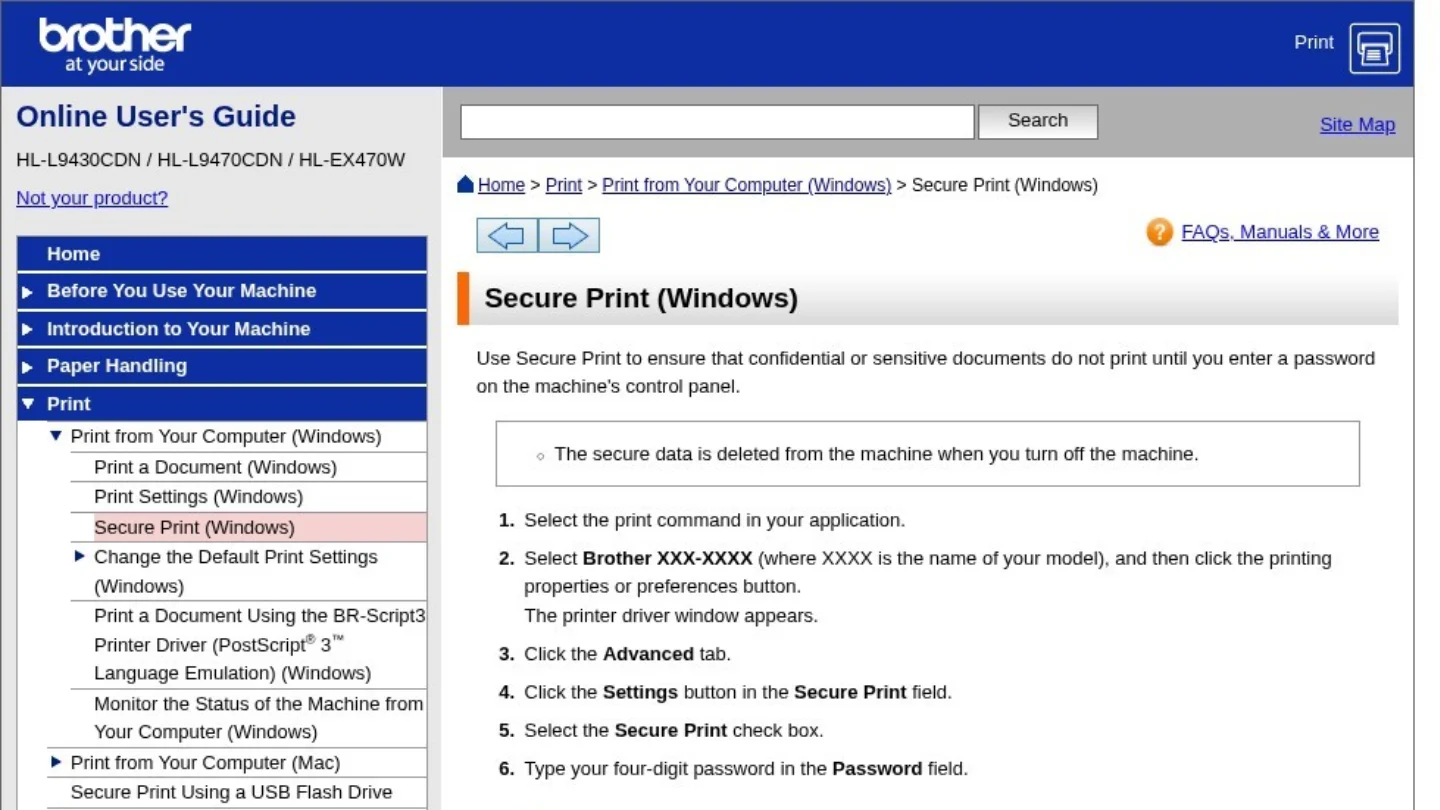
On Brother machines, each document gets its own password. After the pages print, the job is cleared from the printer’s memory, and turning the printer off also deletes any secure jobs still waiting. So tell staff that a held job is lost if someone switches the printer off and on.
HP’s office security advice backs the same idea. HP calls the feature secure print release, and it adds audit trails of print activity. For sensitive scans, HP also suggests two-step sign-in before release.
Put the Printer on Its Own Network Segment
Put each shared printer on its own VLAN, a separate virtual network, so a breach of the printer cannot spread far. HP gives that same advice. After that, add firewall rules so only staff computers can reach the printer’s print ports.
Keep guests off that segment entirely, since a visitor’s phone has no reason to talk to your printer’s web panel. Our guide to guest Wi-Fi security for a small office walks through how to wall off guest traffic from the office LAN.
If the printer joins Wi-Fi directly, use WPA3 where the printer supports it, along with a long, complex Wi-Fi password. Also place the printer where you can see it. For example, HP suggests restricted areas, and locked cabinets for very sensitive papers.
Wipe the Printer Hard Drive Before the Lease Ends
Wipe or remove the printer’s hard drive before you return or sell the machine, because office printers with a drive can keep job data on it. That data leaves with the machine unless you erase it. So first check if your model has a drive at all.
On Xerox machines, Image Overwrite does the erasing. Depending on the model, it can run right after each job, on demand or on a daily schedule. Xerox disks also use AES encryption at 128-bit or 256-bit, again depending on the model.
Plan the return with care. For many Xerox products, a technician removes the disks before the device goes back and leaves them with you for a flat fee. However, Xerox does not offer cleaning services for returned disk drives. So run an on-demand overwrite first, then decide to keep or destroy the drive.
Ask your leasing company the same question in writing, too. That way, the drive policy is in the contract before the machine arrives.
Read also: Conference Planning Checklist for Each Step of the Way
13-Step Checklist to Secure a Shared Office Printer
To secure a shared office printer, work through these 13 steps once, then repeat the firmware step every month.
- Change the admin password or PIN on the printer’s web panel.
- Save the new password in the team’s password manager.
- Set a PJL password and turn off file system access through PJL.
- Disable remote firmware upgrade commands.
- Turn on firmware update alerts, and update only from the maker’s site.
- Turn off Telnet, FTP and any protocol you do not use.
- Make SNMP read-only and remove the “Public” community name.
- Switch printing from port 9100 to IPPS.
- Turn on secure print and show staff how to release a job.
- Move the printer to its own VLAN, with firewall rules for staff devices only.
- Keep guest Wi-Fi away from the printer segment.
- Turn on drive overwrite or encryption if the printer has a drive.
- Write the drive policy into the lease before the machine arrives.
The printer is one line in a longer list, though. Our small business cybersecurity checklist covers laptops, accounts and backups. Also watch for fake “scan to email” messages, a common lure in our phishing email examples.

Shared Office Printer Security Questions
Can a shared office printer be hacked?
Yes, a shared office printer can be hacked if it is reachable and left on factory settings. A printer on a public IP address exposes its web panel, Telnet, FTP, SNMP and port 9100 to anyone online, and a default admin login then gives full control.
What is the default admin password on an office printer?
The default admin password on an office printer depends on the maker and model. For example, Canon’s imageRUNNER 2204F, 2204N and 2004N use 7654321 for the ID and PIN. Xerox’s VersaLink C8000 and C9000 use Admin with the serial number or 1111. Brother’s HL-L8430CDW line prints its default password on a “Pwd” label on the back.
How do I stop people from picking up other people’s printouts?
To stop people from picking up other people’s printouts, turn on secure print. On Brother printers, the sender sets a four-digit password in the driver, and the pages print only after that code is entered at the printer.
Should a printer be on a separate network?
Yes, a printer should be on a separate virtual network, which limits how far a breach spreads. Firewall rules can then allow only staff computers to print.
Do office printers store copies of documents?
Yes, office printers with hard drives can store copies of document data. Xerox offers Image Overwrite to erase job data and AES encryption on its disks, and for many products it removes the disks before a device is returned.